Chat with a Spark
Every Spark has one Space with you. It is a single, permanent conversation, so you can pick up where you left off on any device.
The Chats tab
The Chats tab lists your Spaces with each Spark and your groups. Instead of a preview, a row can show:
| Label | Meaning |
|---|---|
| Working | The Spark is busy on something you asked for. |
| Needs you | The Spark is waiting for your answer. |
| Done | Longer work has finished and you have not opened the Space yet. |
Sending messages
- Type in the composer and send. A message can be up to 5,000 characters.
- One reply runs at a time. Anything you send while the Spark is replying waits in an Up next strip above the composer, and you can remove a waiting message before it goes.
- If you are offline, messages wait with "Messages on hold, sending when back online". A message that fails is never re-sent by itself: it gets its own Retry.
- Up to three short suggested replies can appear above the composer. Tap one to send it.
Voice notes
Hold the microphone button to record, and slide away to cancel. The note appears right away and the Spark reacts with 👀 to show it arrived.
- The Spark hears the note through a private transcript. You can show or hide the transcript with the small document icon on the note.
- If a note has no speech, it is kept but no reply starts.
- A single voice note can be up to 25 MB.
- If you have photos ready to send, holding the button records a voice note that goes with them.
Replies, reactions and edits
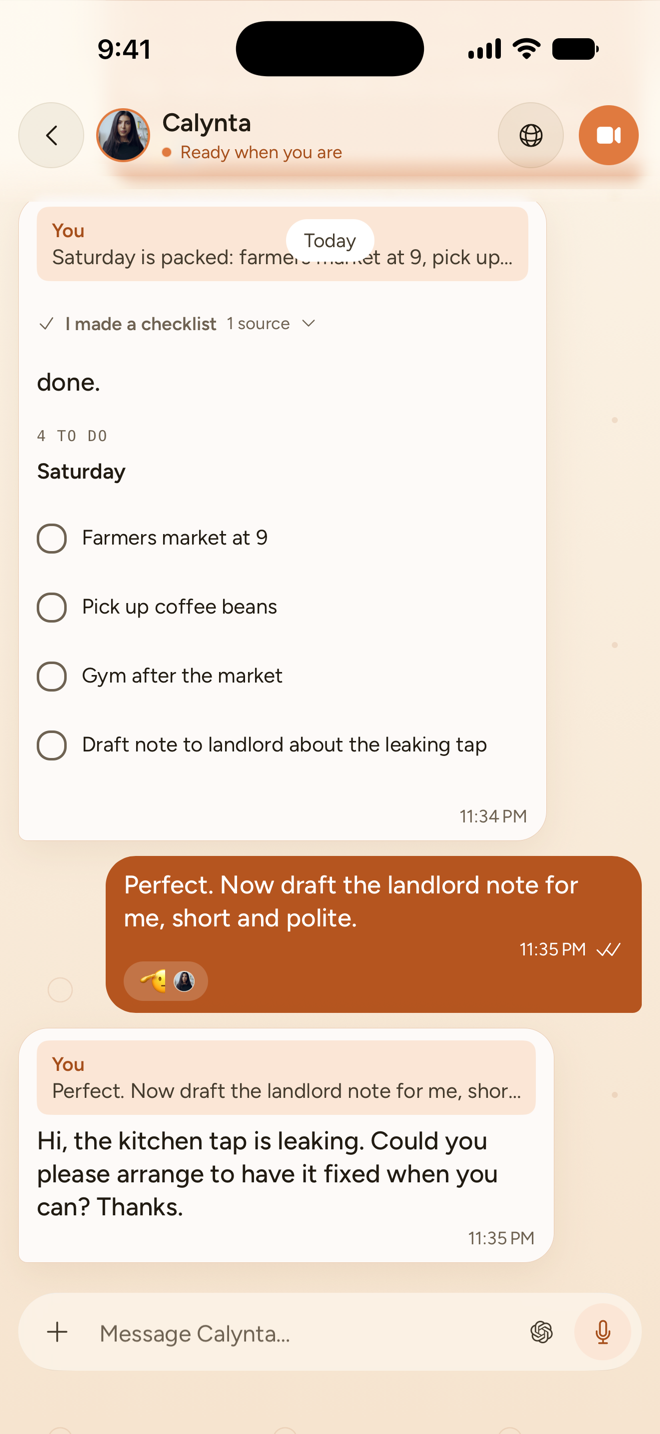
- Reply to a message: swipe the bubble sideways, or long-press and choose Reply. Tap a quote to jump back to the original.
- Long-press a message to react, or to Reply, Copy, Edit, Ask again, Pin to board or Delete. Hold a word to select text.
- Reactions: ❤️ 🔥 😭 💀 🙏 👀 🫡 👍 💡 😂. The Spark uses 👀 while it works on your message and 👍 when it is done.
- Edit works on your own messages, which then show "edited". Delete works on your messages and the Spark's replies. Deleting a question also stops its answer.
Photos, files and locations
Tap + to open the attach sheet. Its tabs are Gallery, File, Location, Apps and Live browser.
| What | Details |
|---|---|
| Photos | Pick up to 4 at a time, or take one with the camera tile. Photos and your text go as one message, and the Spark sees the images. |
| Documents | PDF, plain text, Markdown and JSON, up to 20 MB each. |
| Images | PNG, JPEG, WebP and HEIC, up to 20 MB each. You can also paste an image. |
| Video | MP4, M4V and MOV, up to 200 MB. The Spark watches a video when you ask it to. |
| Audio | M4A, AAC, MP3, WAV and WebM. |
| Location | Sends where you are now, as a card that opens in your maps app. |
Your uploads can use up to 1 GB in total. Uploads start as soon as you pick a file, and removing the file cancels the upload.
You cannot drag files into the chat yet. Use the attach sheet, or paste an image.
Stopping and redoing a reply
Stop a reply at any time. It stops straight away and shows You stopped this, with Regenerate. If Calynta cannot confirm the stop, it tells you ("Couldn't stop that reply") and offers Try again, rather than pretending.
How the Spark shows its work
There is no fake typing indicator. While it works, the Spark says what it is doing in plain words, and the header shows working on it, writing back or waiting for you. When it is done you get a small receipt you can open, for example "I searched the web · 4 steps · 2 sources".
In the Spark's profile sheet, While I work lets you choose Receipts (one live line, then a receipt) or Every step.
Long answers get a Read link that opens a full-screen reader.
Choosing the model and how hard it thinks
The chip in the composer opens the model picker. Your choice applies to this Space, for future messages.
- Recommended is the suggested choice.
- Models that are not part of your plan are greyed out with Not in your plan.
- Free keeps you chatting even when credits run low. Its replies may be slower and vary. It is never picked for you.
- More control (on models that support it) sets how hard the model thinks: Auto (the default: Calynta decides), Off, Minimal, Low, Medium, High, Very high or Max. More thinking is slower and costs more.
The list of models can change over time as better ones become available.
The Spark's profile sheet
Tap the Spark's name at the top of the Space to open its profile. From there you can change its Face and voice, its Picture, the Chat background, While I work, its Call capability, open its Memory, and forget saved browser data.
- Search inside a Space or across your chats is not available yet.
- Topics (named side conversations inside a Space) are supported behind the scenes but are not shown in the app yet.